
Powerful mSecure Features You Should Be Using
mSecure offers far more than basic password storage. Beneath its clean, simple interface are powerful tools designed to help you work faster, stay organized, and strengthen your security. Whether you're a longtime user or just getting started, this guide highlights features you may not be taking full advantage of.
Passkeys and One-Time Passwords (brand new to Android, iOS and Mac)
mSecure 7 introduces two modern authentication tools that go beyond traditional passwords:
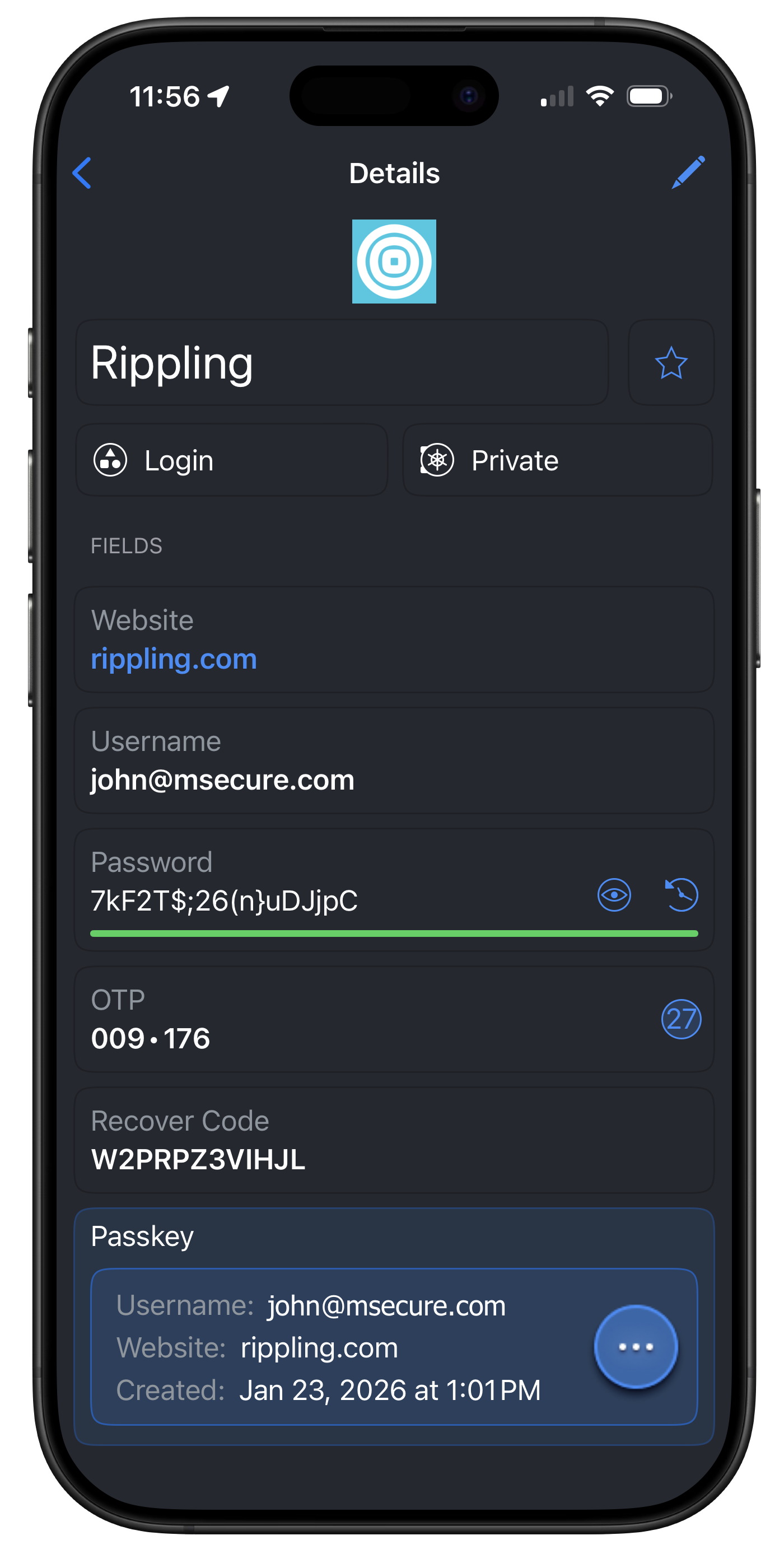
Passkeys provide a faster, more secure, and phishing-resistant way to sign in - without typing a password. You can store and use passkeys directly in mSecure for supported sites and apps.
One-Time Passwords (OTPs) let you store time-based verification codes alongside your login credentials, so everything you need to sign in is available in one place.
Together, these features make mSecure a complete solution for modern sign-in security.
Want a deeper dive? See our guides on Passkeys and One-Time Passwords.
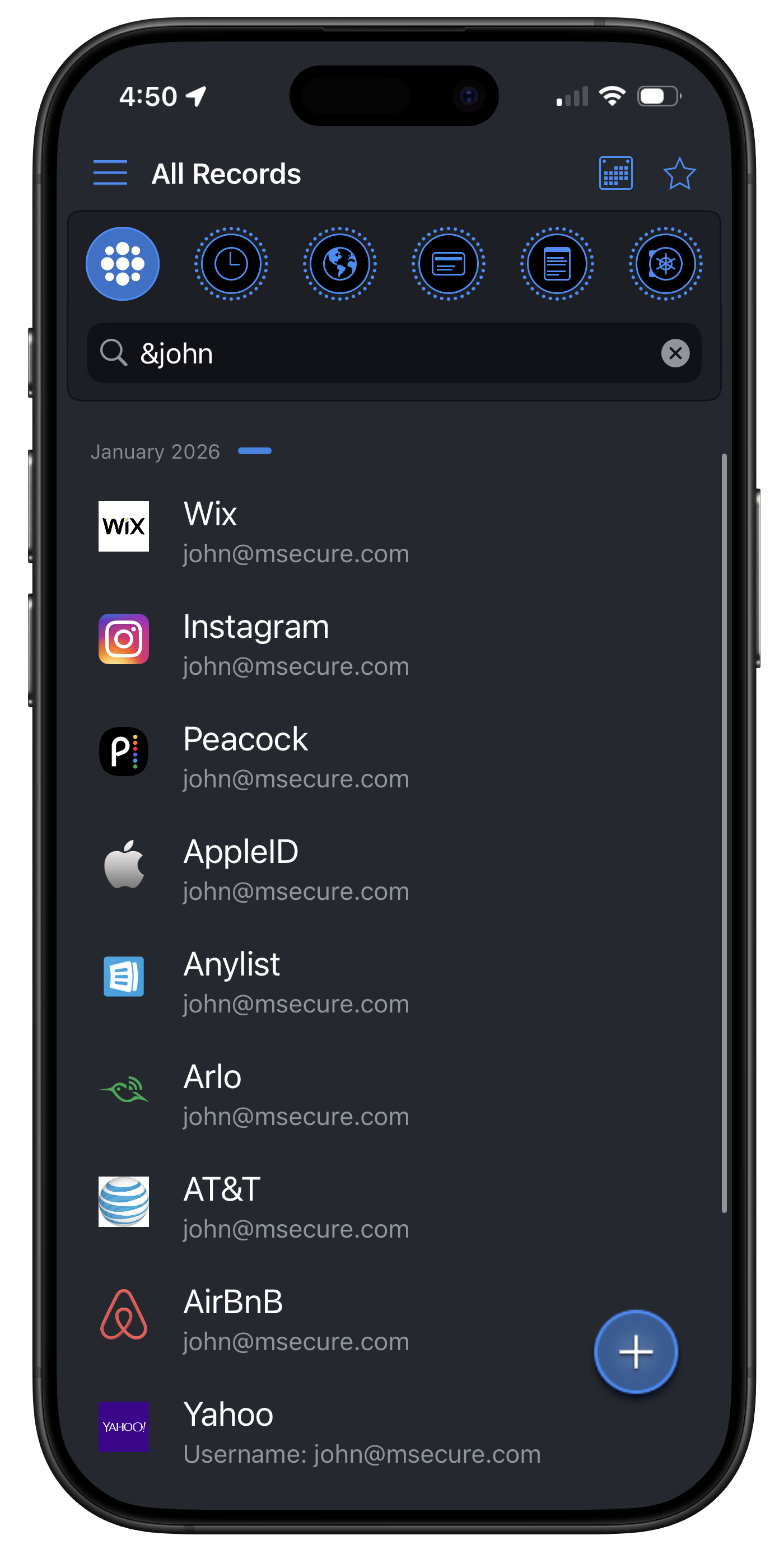
Advanced Search Shortcuts
Find exactly what you need in seconds using special search operators.
- @ - Search by record title only
- & - Search within fields only
- # - Search by tag
- "word" - Match whole words only
These shortcuts can be combined with regular search terms to narrow your results and save time.
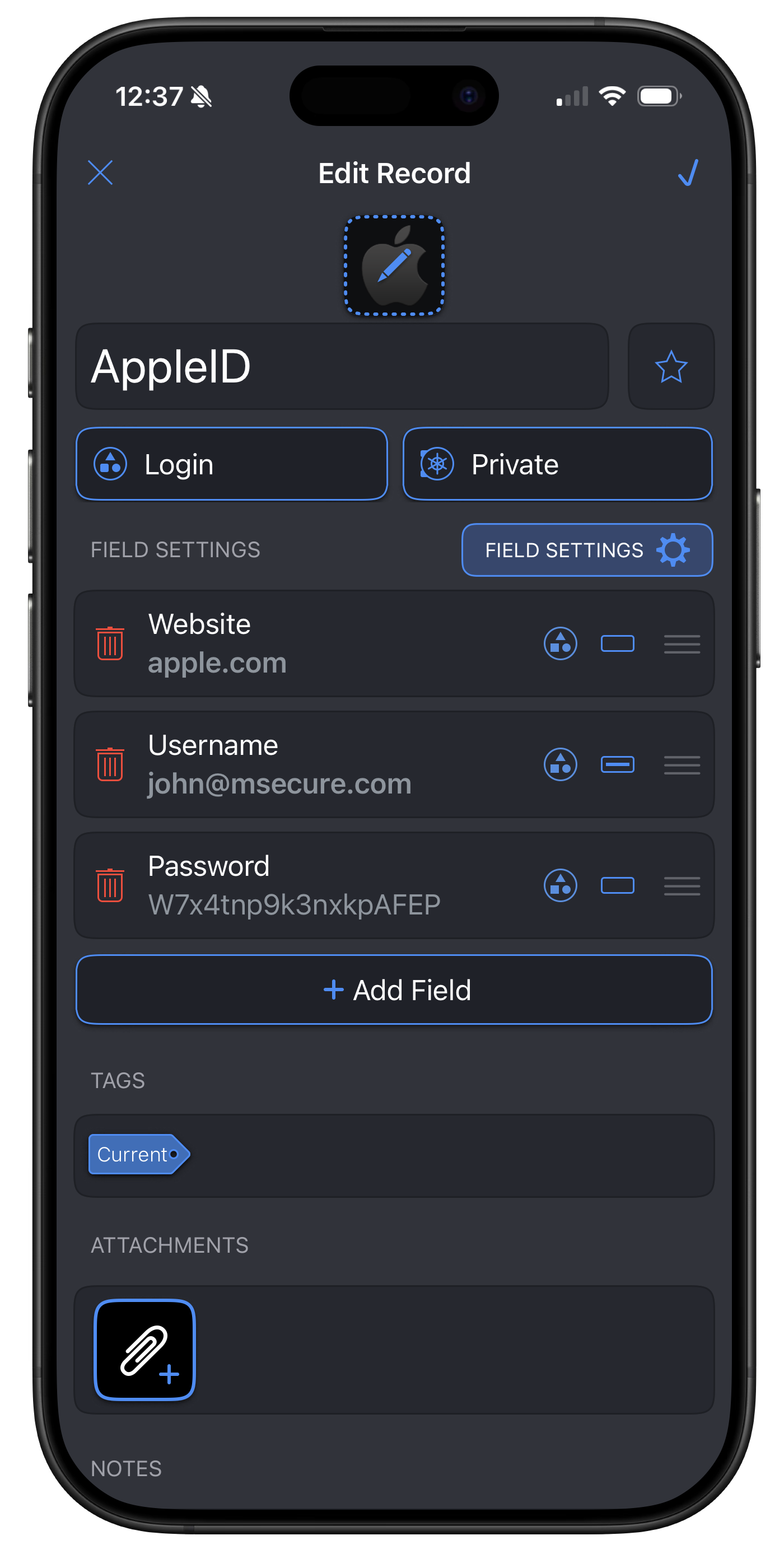
Custom Field Settings
Adapt records to fit your needs by customizing fields:
- Rename fields
- Change field types
- Adjust how data is displayed
Especially useful for storing non-standard, work-specific, or personal information.
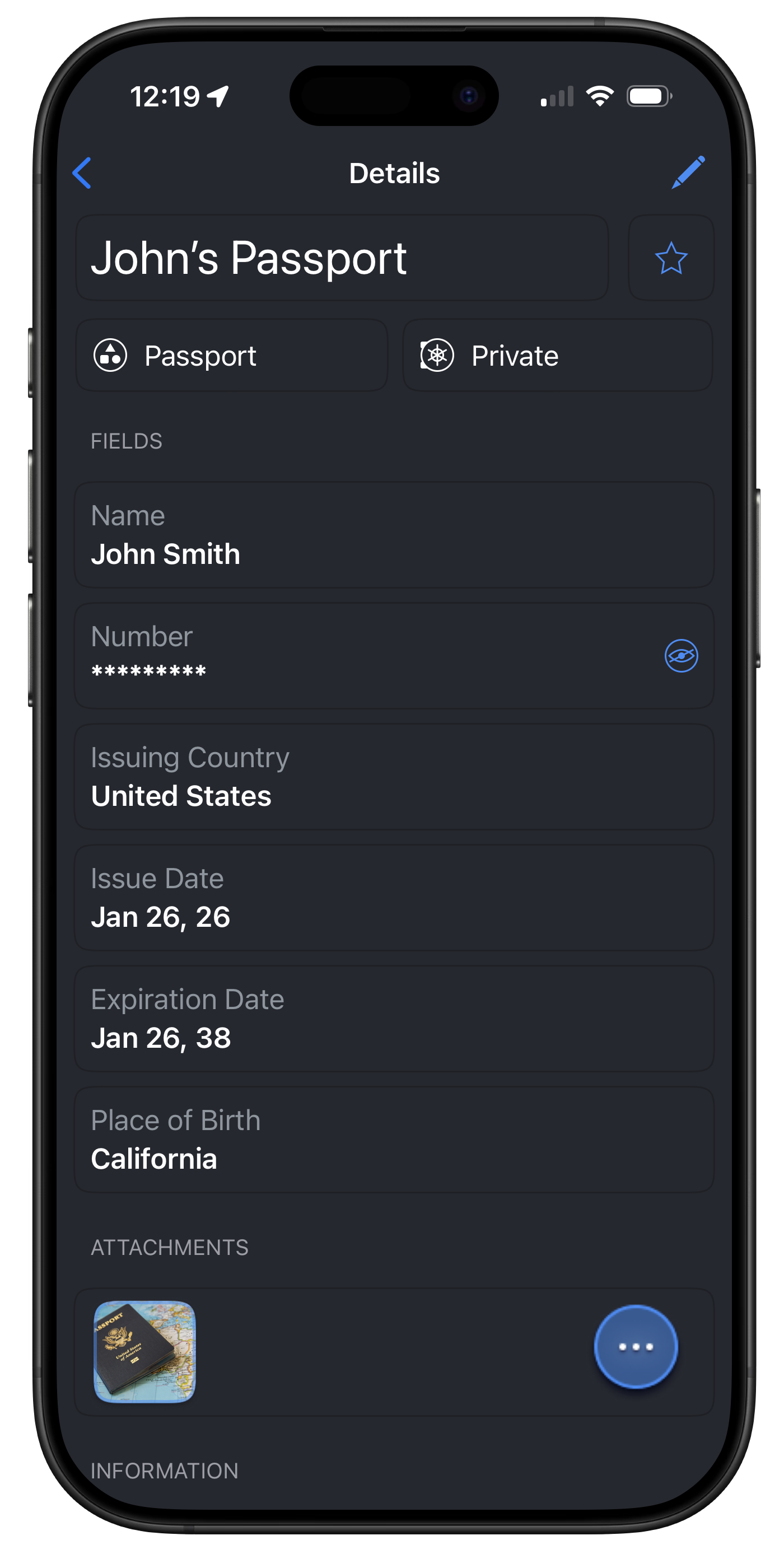
Secure File Attachments
Attach encrypted files directly to your records, including:
- Passport or ID photos
- Insurance cards
- Sensitive documents
All attachments remain fully encrypted and easily accessible when you need them.
Tags for Flexible Organization
Tags let you group records by:
- Project
- Purpose
- Person
Use tags to filter and find information quickly.
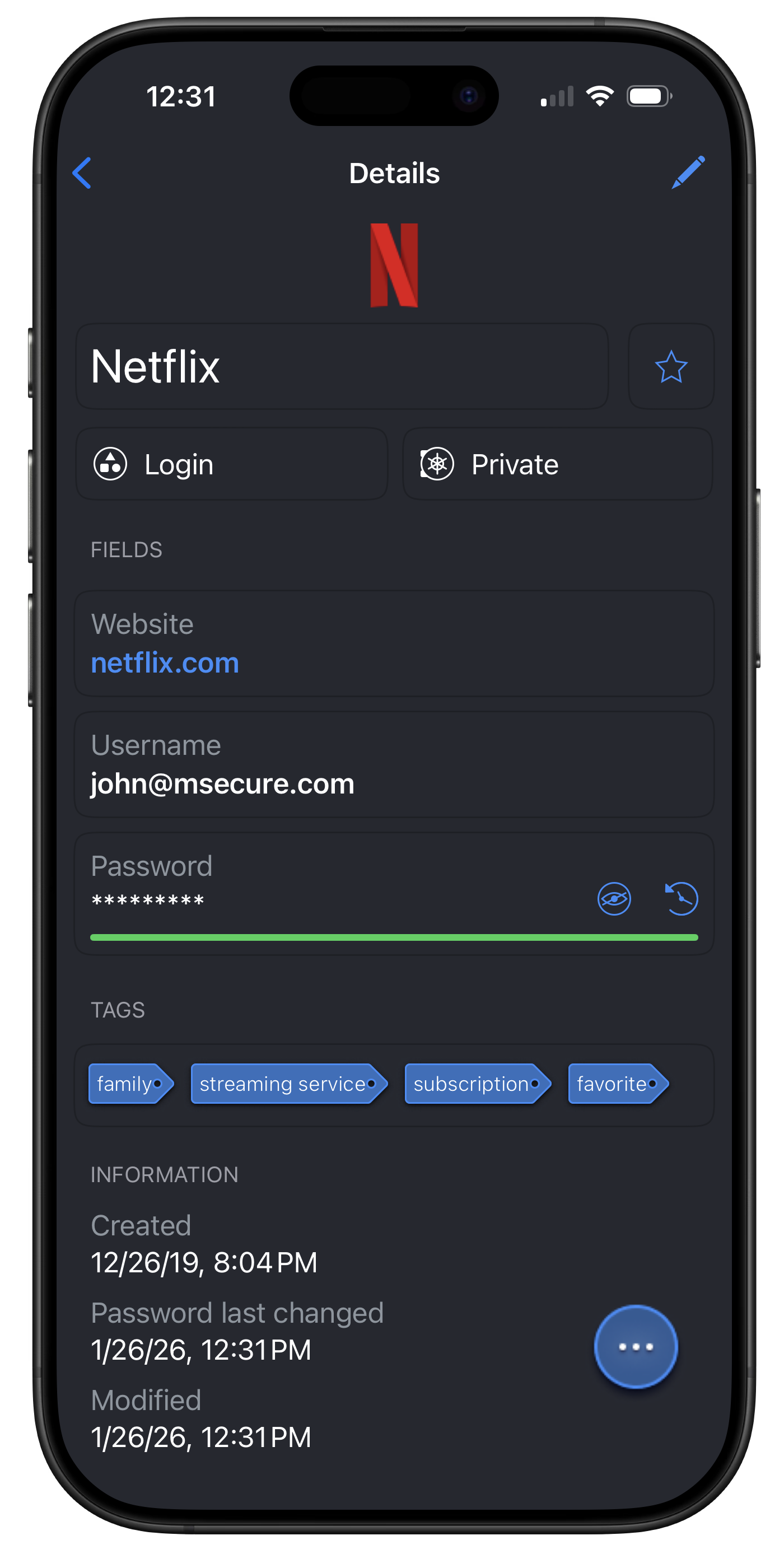
Customize Record Icons
Improve visual recognition:
- Highlight important records
- Group related items visually
- Browse faster
Small changes, big usability improvements.
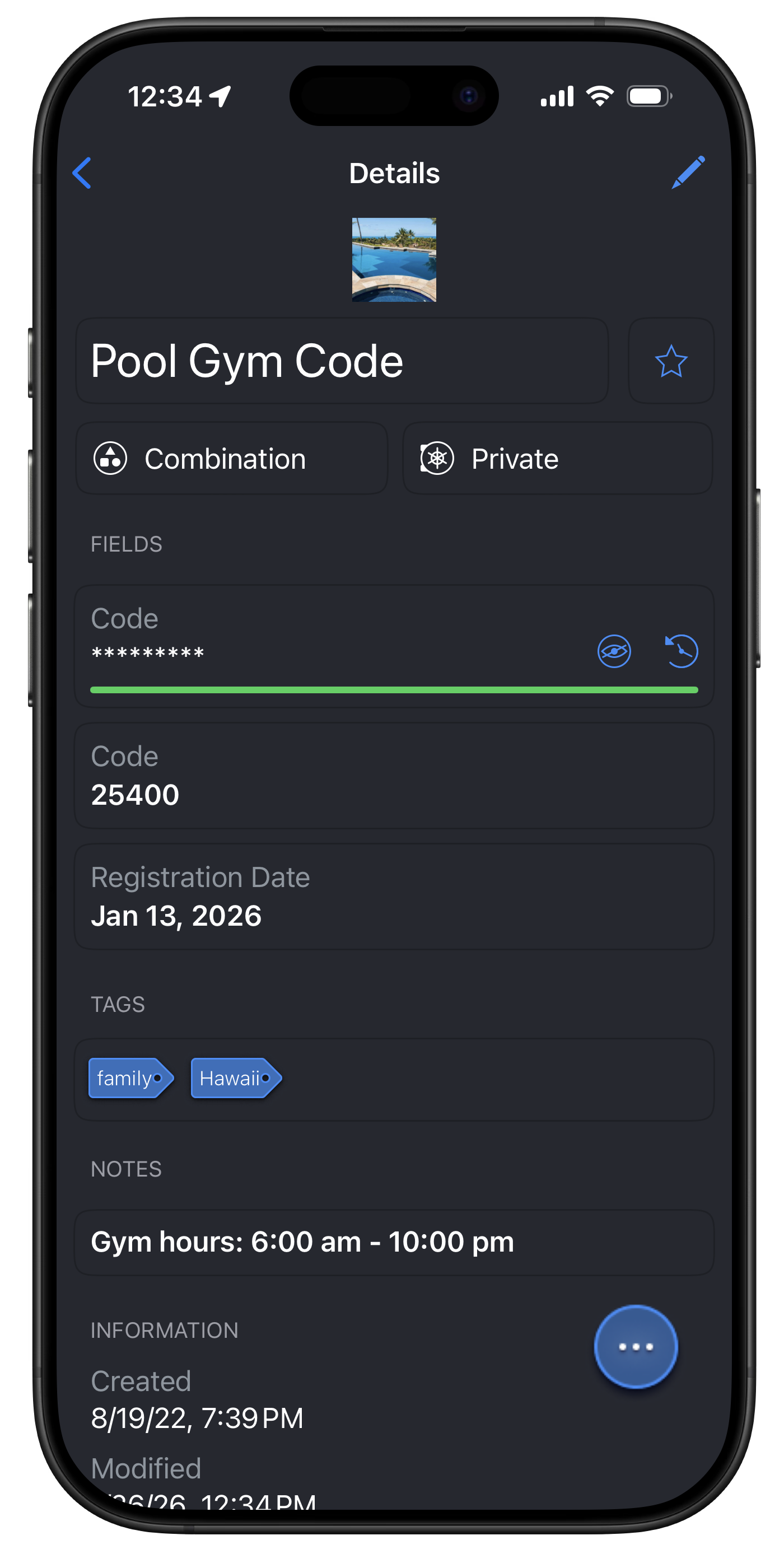
Customizable Home Screen Filters (iOS)
On iPhone, you can personalize the six filter icons at the top of mSecure's main view to match how you use the app. Long-press any of the six icons to customize:
- Filter name
- Selected tags
- Templates
- Vaults
- Icon
If your setup no longer works for you, you can reset any filter back to the default at any time.
Note: Home screen filters are device-specific. Filters customized on your iPhone won't sync to your Mac and vice a versa. For a full walkthrough, see Introducing Custom Filters.
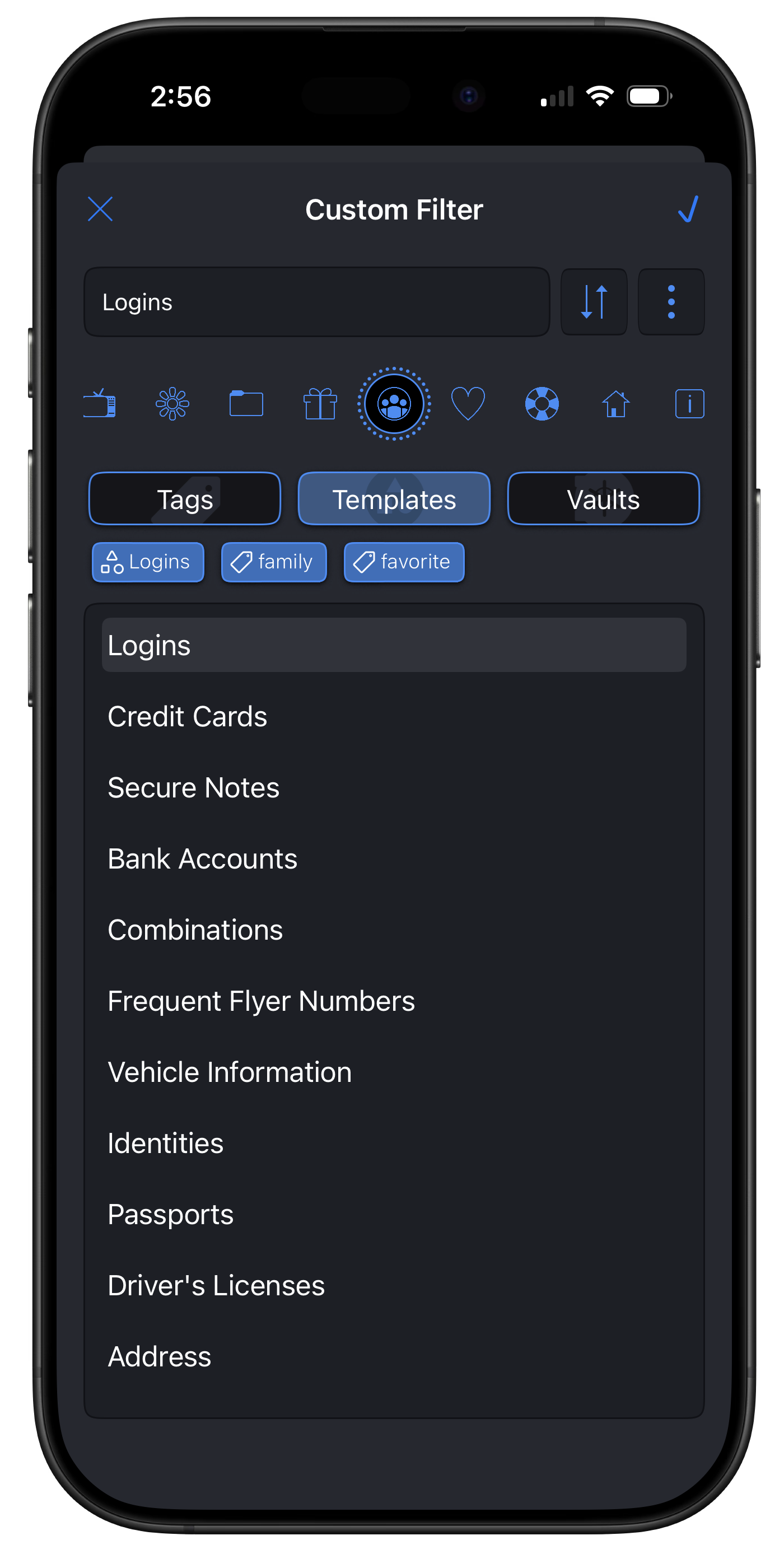
Security Center Insights
Review your vault's security health to identify:
- Records where Two-Factor Authentication is supported but not yet enabled
- Weak or reused passwords
- Other areas where security can be improved
A quick way to strengthen your protection.
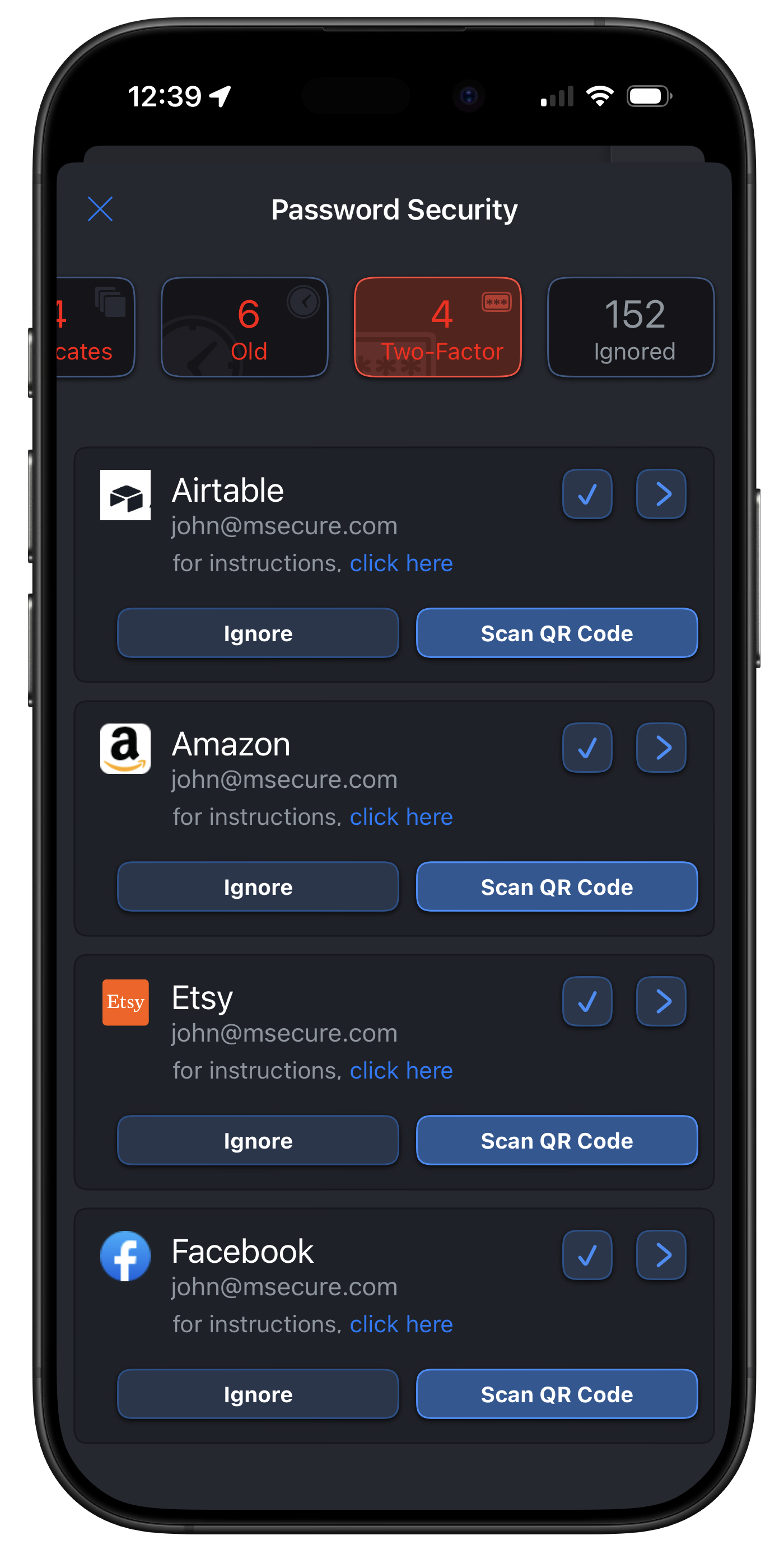
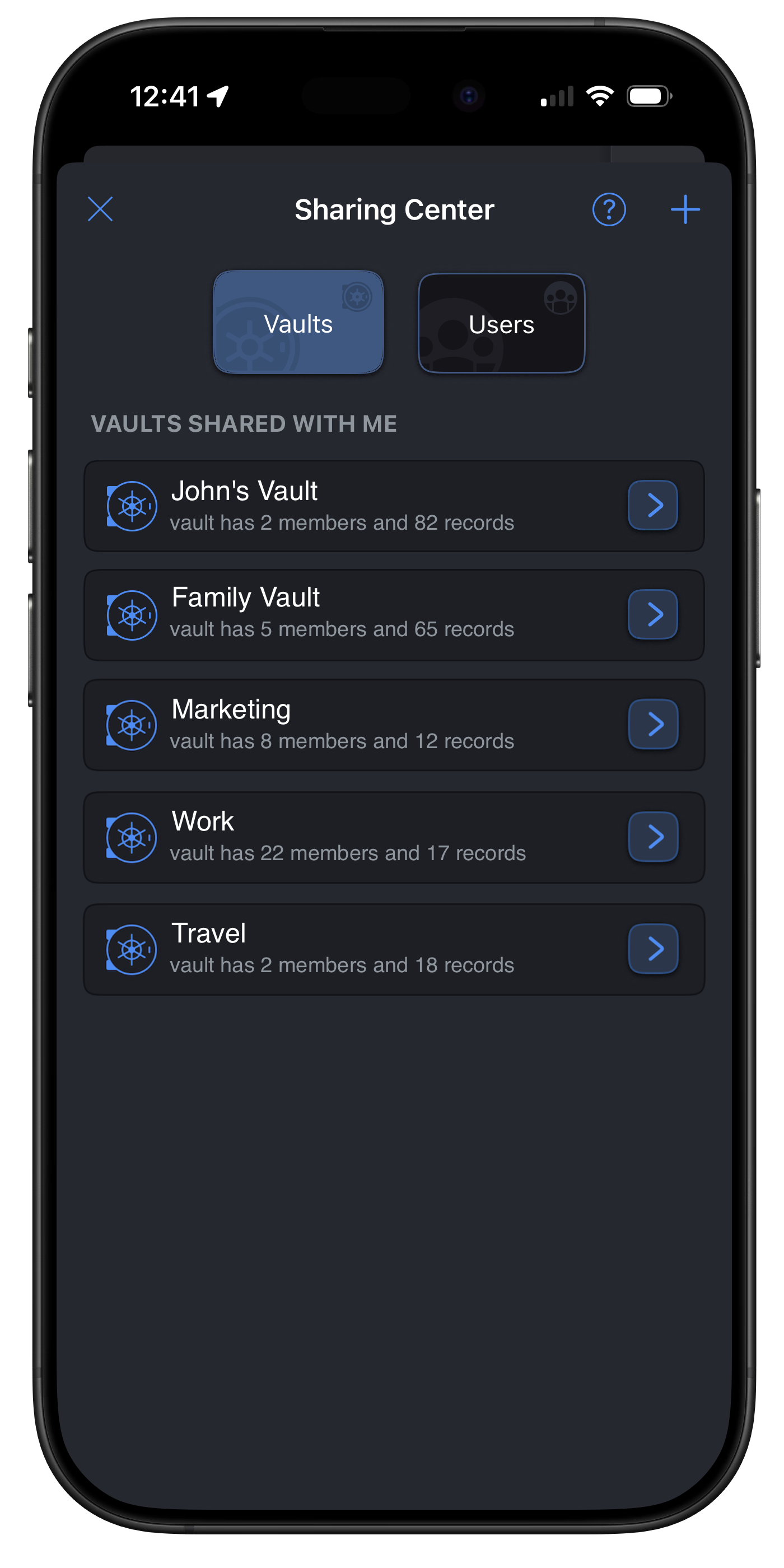
Vault Sharing
Share only what's necessary:
- Create separate vaults
- Share with family or trusted contacts
- Keep full control over access
Ideal for shared accounts or emergency information.
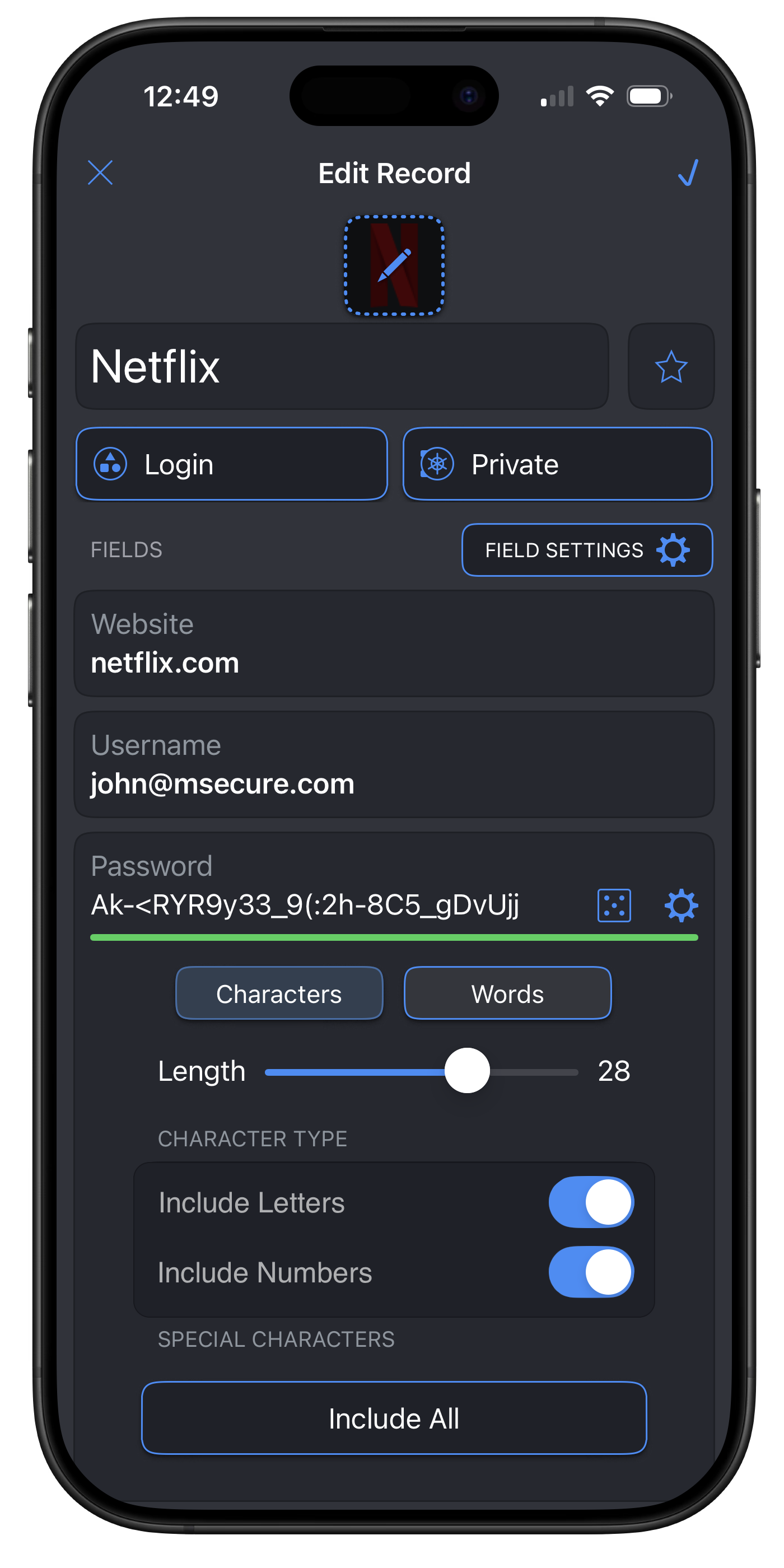
Built-in Password Generator
Create strong, unique passwords with custom:
- Password length
- Character types
- Complexity requirements
This ensures every password you create is both secure and tailored to the site or app you're using.
Make mSecure Work for You
mSecure is designed to be powerful without being complicated - and these features are here to help you get even more out of your vault.
Did you find it helpful? Yes No